Introduction
This guide shows you how to register your company for UAE e-Invoicing with InvoiceNow Biz F.Z.C., an Accredited Service Provider (ASP). An ASP is a company approved by the Federal Tax Authority (FTA) to send and receive electronic invoices for businesses over the Peppol network. Peppol is the secure network through which e-invoices travel between businesses.
You will complete the registration in two connected stages:
- Stage 1 – EmaraTax (the FTA portal). You sign in, open the E-Invoicing service and choose InvoiceNow Biz F.Z.C. as your ASP.
- Stage 2 – InvoiceNow Biz portal. EmaraTax redirects you here. You verify your details, confirm your company information and submit your registration.
How to read this guide
- Steps that happen in EmaraTax carry a blue “Stage 1” banner. Steps on the InvoiceNow Biz portal carry a teal “Stage 2” banner.
- Button and field names appear in bold, exactly as they are written on screen.
- Orange numbered circles on a screenshot mark the control described in the caption.
- Screenshots have been edited to hide company-specific numbers and e-mail addresses. Your own screen will show your company’s details, and some pages may look slightly different because the portals are updated from time to time.
Before You Begin
Have the following ready before you open EmaraTax. You should also be authorised to carry out the registration on behalf of the company (for example, as an owner, director, finance manager or an authorised user of the company’s EmaraTax account).
- Access to the correct EmaraTax account for your company.
- The credentials or authentication method you normally use to sign in (your e-mail and password, or UAE PASS).
- Your company’s correct Tax Identification Number (TIN).
- Access to the e-mail address associated with your EmaraTax account.
- Your company’s registered legal details (legal name and VAT TRN), so that you can check them on screen.
- Access to your registered mobile number, if you wish to provide it (this is optional).
- A modern web browser and a stable internet connection.
- Before you start, check that your company’s TIN / VAT TRN is registered and active with the Federal Tax Authority. You can verify it free at https://tax.gov.ae/en/default.aspx — see “Verify a TIN or TRN on the FTA portal” at the end of this guide.
Overview of the Onboarding Process
The whole process has 14 steps. Steps 1 to 7 take place in EmaraTax. At step 7 you are redirected, and steps 8 to 14 take place on the InvoiceNow Biz portal.
| # | What you do | Where |
|---|---|---|
| 1 | Sign in to EmaraTax. | EmaraTax (FTA portal) |
| 2 | Select the correct company. | EmaraTax (FTA portal) |
| 3 | Open E-Invoicing. | EmaraTax (FTA portal) |
| 4 | Read the instructions and click Start. | EmaraTax (FTA portal) |
| 5 | Proceed through the e-Invoicing action-required notice. | EmaraTax (FTA portal) |
| 6 | Search for and select InvoiceNow Biz F.Z.C. | EmaraTax (FTA portal) |
| 7 | Confirm the redirect to the ASP portal. | EmaraTax (FTA portal) |
| 8 | Verify the applicant’s e-mail address and TIN. | InvoiceNow Biz portal |
| 9 | Review and confirm company details, document types and accept the declaration. | InvoiceNow Biz portal |
| 10 | Review and accept the UAE ASP Service Terms | InvoiceNow Biz portal |
| 11 | Confirm successful registration and retain the Peppol Participant ID. | InvoiceNow Biz portal |
| 12 | Continue to the InvoiceNow Biz portal. | InvoiceNow Biz portal |
| 13 | Activate your account and sign in to the customer portal. | InvoiceNow Biz portal |
The detailed instructions that follow are grouped into eight phases: Phases 1 to 3 cover Stage 1 (EmaraTax) and Phases 4 to 8 cover Stage 2 (InvoiceNow Biz portal, including account activation).
Phase 1: Sign in to EmaraTax
Step 1.1 Open EmaraTax and sign in
- Purpose
- Sign in to your company’s account with the Federal Tax Authority, which is where e-Invoicing registration starts.
- Where to go
- The official EmaraTax portal, using the link supplied by InvoiceNow Biz or the link on the FTA’s official website. The portal address is https://eservices.tax.gov.ae/.
- What to do
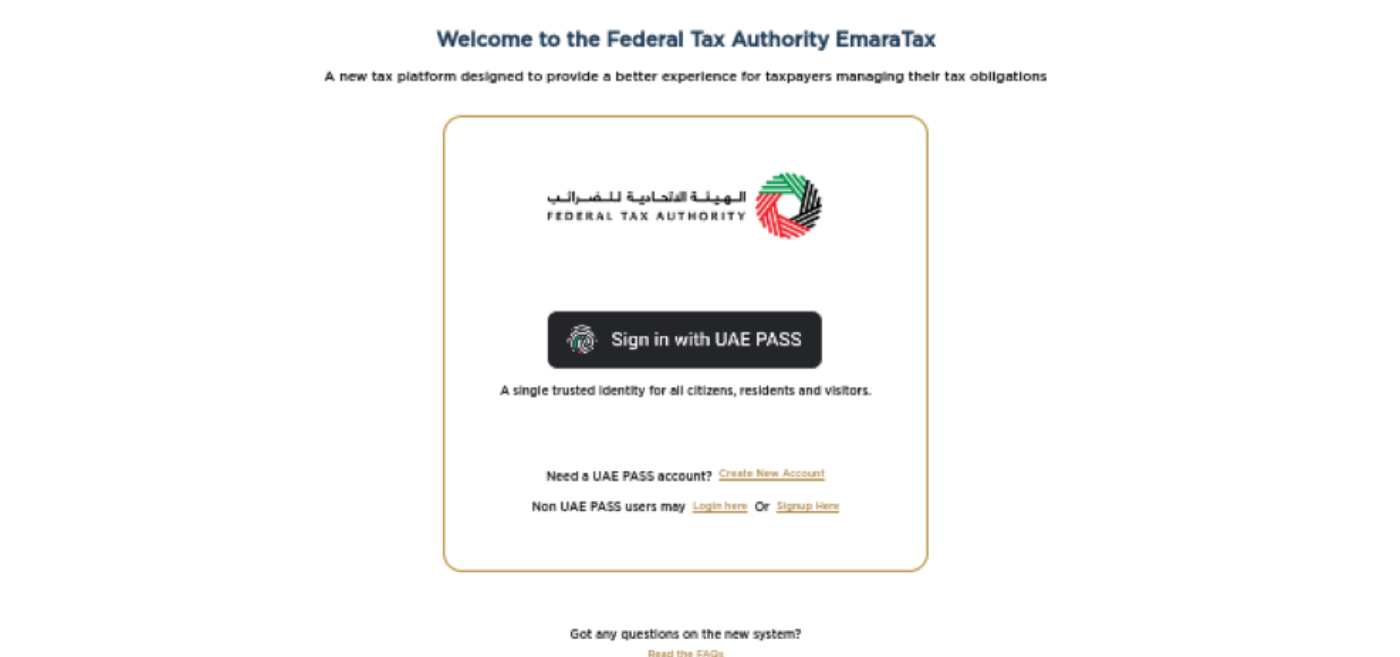
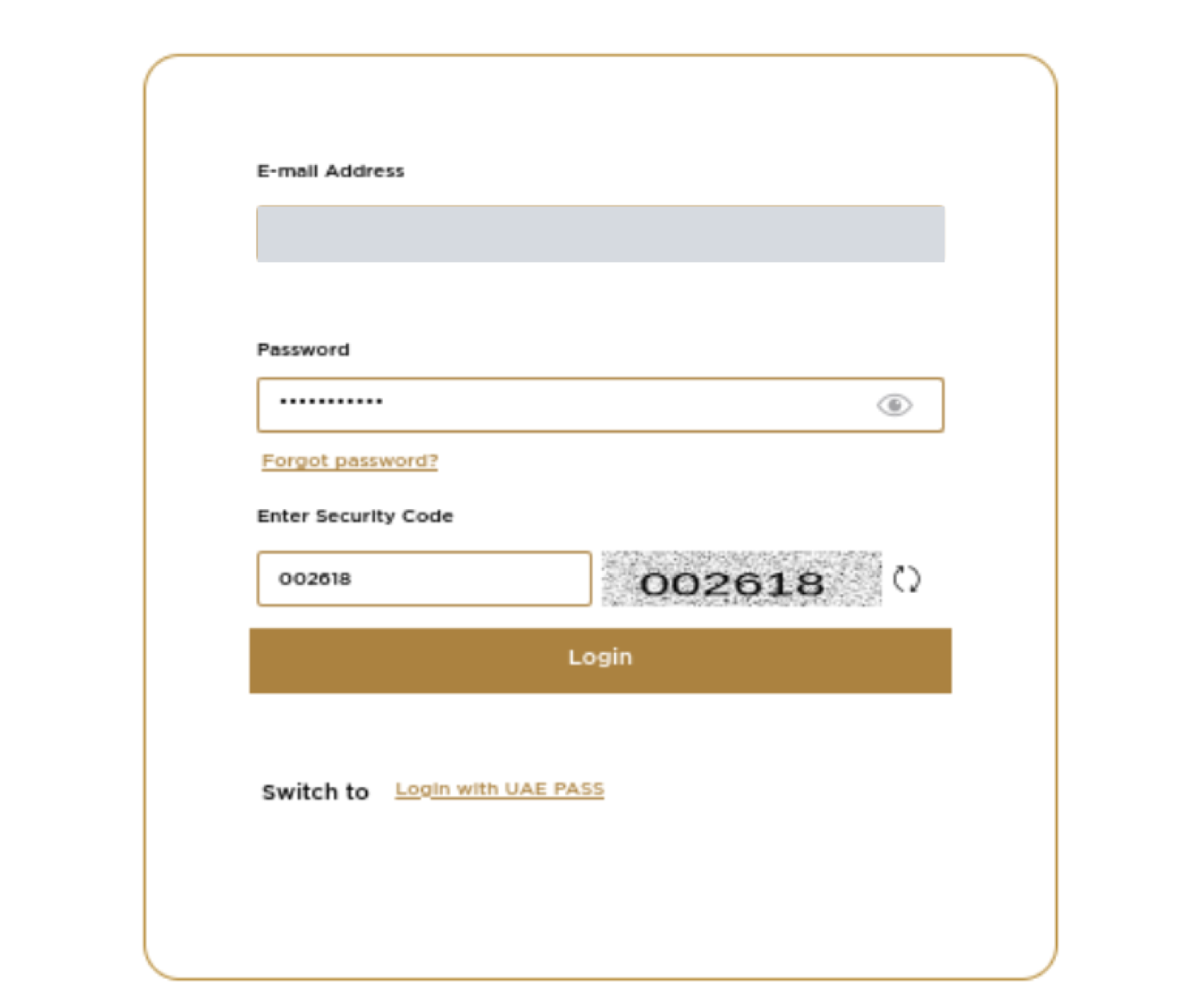
- Open the official EmaraTax portal. The welcome page is titled Welcome to the Federal Tax Authority EmaraTax. If your EmaraTax account is linked to UAE PASS, click Sign in with UAE PASS and follow the UAE PASS prompts on your phone or screen. If you do not use UAE PASS, click the Login here link beside “Non UAE PASS users may”. (Do not use Signup Here if you already have an EmaraTax account.) On the login form, type your E-mail Address and Password, then type the digits shown in the picture into the Enter Security Code box. If the digits are hard to read, click the circular refresh icon beside the picture for a new code. Click Login. If EmaraTax asks for an additional authentication step, complete it. If you open the login form but would rather use UAE PASS, click Login with UAE PASS beside “Switch to”.
- What to look for
- The Sign in with UAE PASS button and the Login here link (Figure 1); the E-mail Address, Password, Enter Security Code boxes and the Login button (Figure 2).
- Expected result
- You are signed in and the EmaraTax home page opens.
- If something goes wrong
- If your password is not accepted, use the Forgot password? link on the login form. If you still cannot sign in, use the support contacts shown at the bottom of EmaraTax pages, because only the FTA can resolve sign-in problems with your EmaraTax account.
Step 1.2 Select your company
- Purpose
- Open the dashboard of the company you want to register for e-Invoicing.
- Where to go
- EmaraTax Home page, in the Taxable Person List.
- What to do
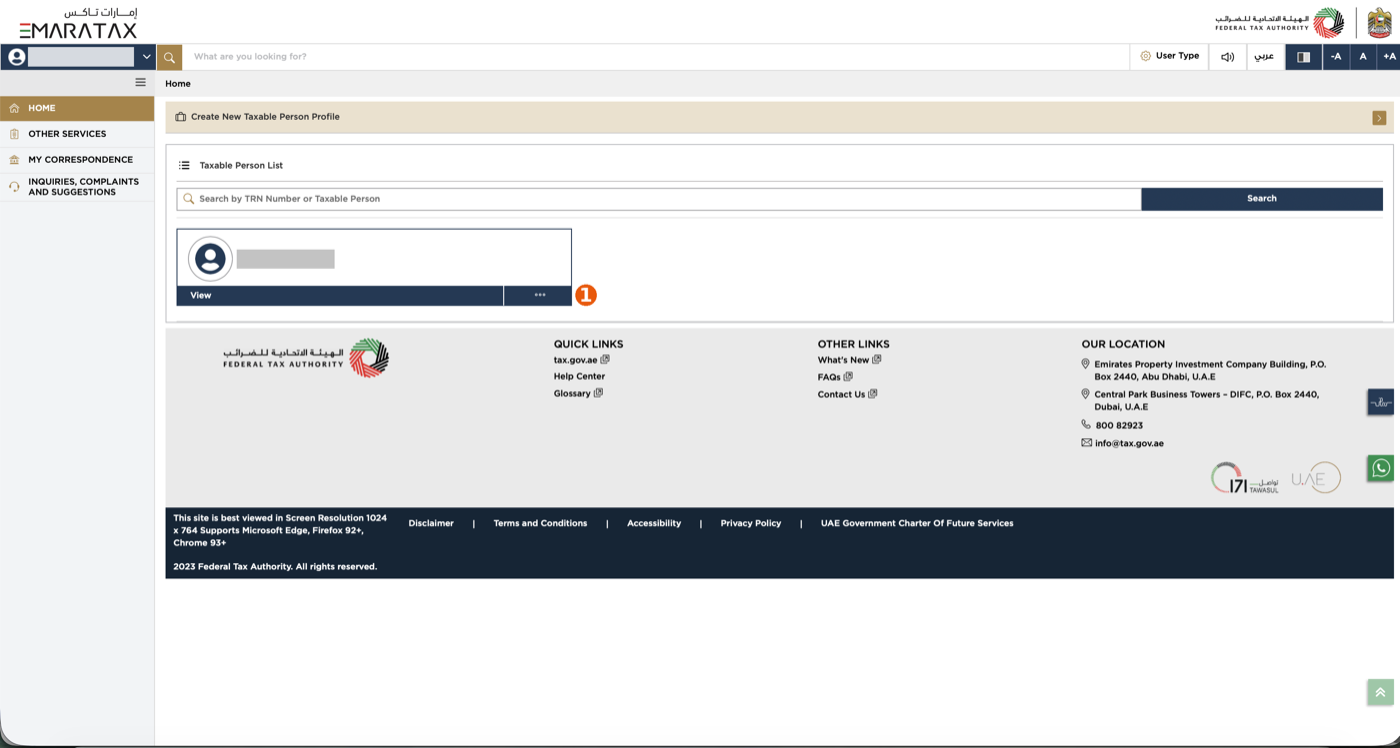
- On the Home page, find the Taxable Person List. If your account manages several businesses, type the TRN or the company name in Search by TRN Number or Taxable Person and click Search. Find the card that shows the legal name of the company you are registering. Click View at the bottom of that card.
- What to look for
- A card for each company, with the company name and a dark View button underneath (Figure 3).
- Expected result
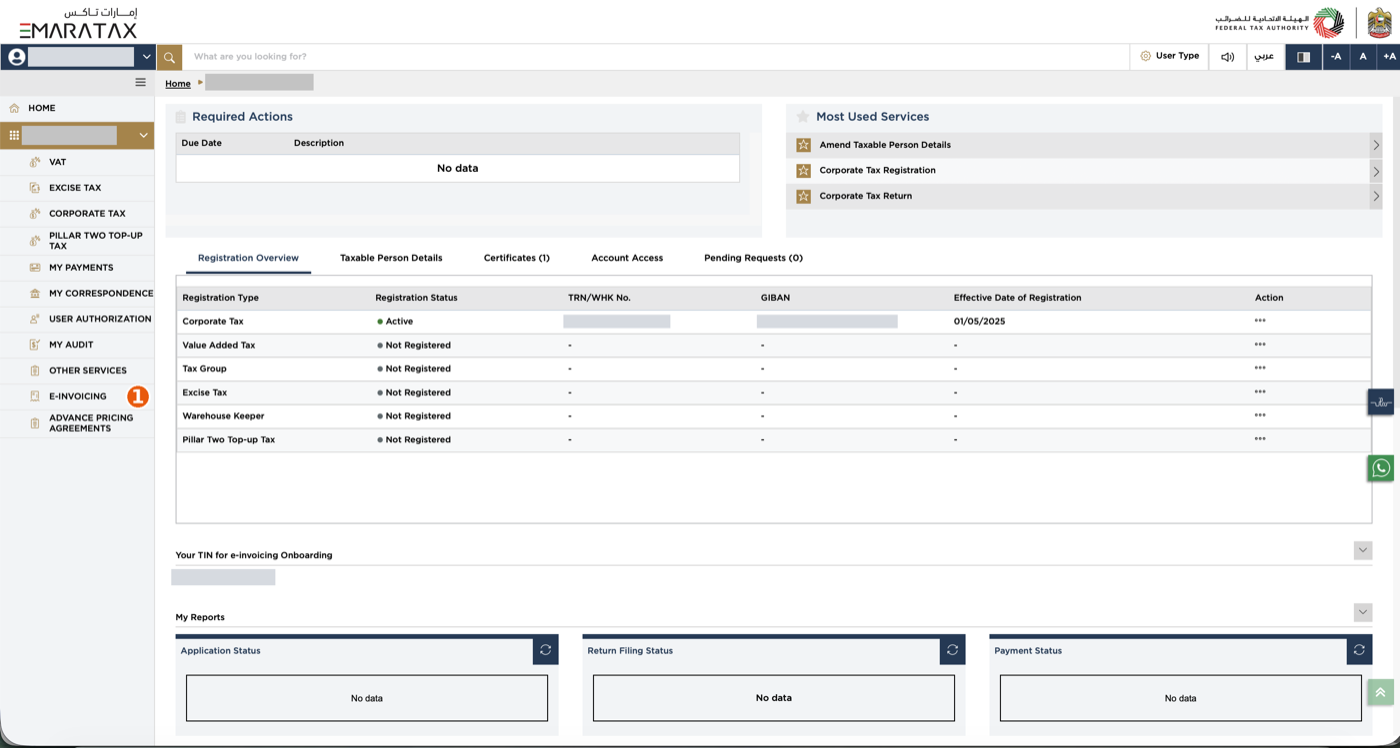
- The dashboard for the selected company opens. The company name appears in the path at the top of the page and in the left-hand menu. You can see tabs such as Registration Overview and Taxable Person Details (Figure 4).
- If something goes wrong
- If your company is not listed, you may be signed in with an account that does not have access to it. Sign out and sign in with the correct account, or ask your company’s EmaraTax administrator to grant you access.
Phase 2: Open the E-Invoicing Service
Step 2.1 Open E-INVOICING from the dashboard
- Purpose
- Reach the FTA’s e-Invoicing onboarding service for your company.
- Where to go
- Your company’s EmaraTax dashboard.
- What to do
- Look at the menu on the left-hand side of the dashboard. Click E-INVOICING. The menu item appears below OTHER SERVICES. Wait for the e-Invoicing service page to load.
- What to look for
- The E-INVOICING item in the left-hand menu (Figure 4). The dashboard also has a section called Your TIN for e-invoicing Onboarding, which shows the TIN that EmaraTax will use for this registration.
- Expected result
- The e-Invoicing service page opens, with summary boxes at the top and expandable sections such as About the Service, Eligibility criteria and Service Steps.
- If something goes wrong
- If you cannot see E-INVOICING, scroll the left-hand menu, then check that you opened the correct company (see Step 1.2). If the menu item is still missing, your user account may not have the permissions for this service; ask your EmaraTax administrator or contact the FTA.
Step 2.2 Read the instructions and click Start
- Purpose
- Confirm that you have read the FTA’s instructions before beginning.
- Where to go
- The e-Invoicing service page in EmaraTax.
- What to do
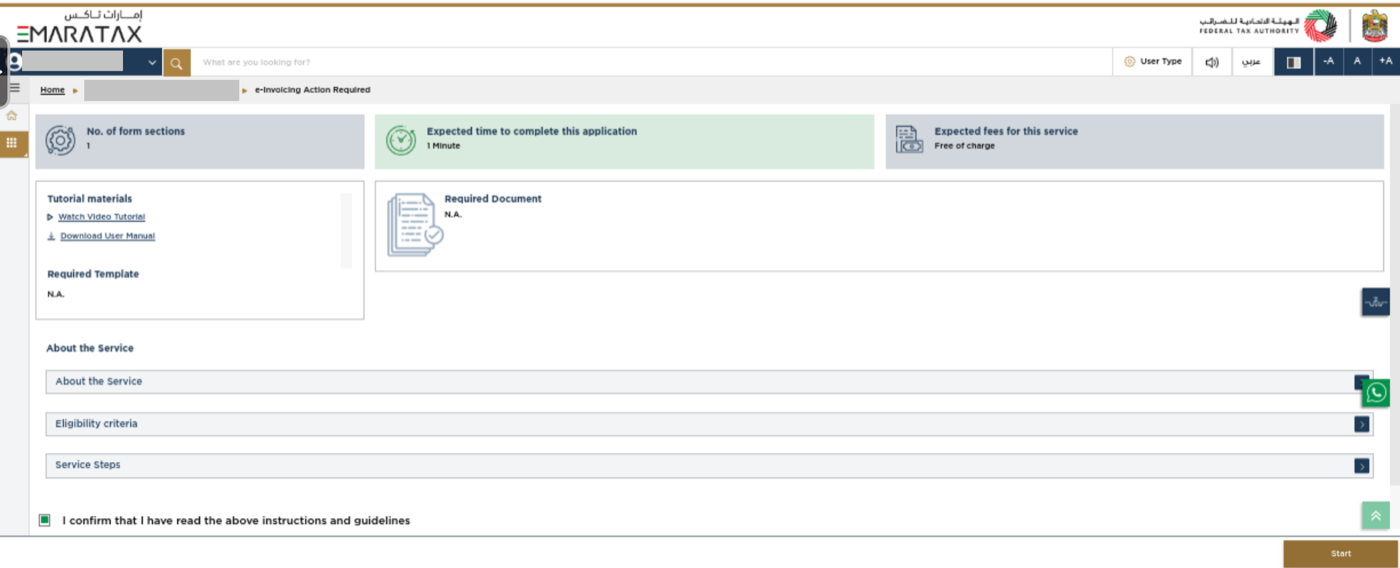
- Read the information on the page. You can expand About the Service, Eligibility criteria and Service Steps to read more. Scroll down to the bottom of the page. Select the checkbox labelled “I confirm that I have read the above instructions and guidelines”. Click the Start button at the bottom-right corner of the page, if it is displayed.
- What to look for
- The checkbox and the Start button at the bottom of the page (Figure 5).
- Expected result
- EmaraTax moves you forward in the e-Invoicing process.
- If something goes wrong
- If Start does not appear, make sure the checkbox is ticked. If it still does not appear, refresh the page and try again, or contact the FTA.
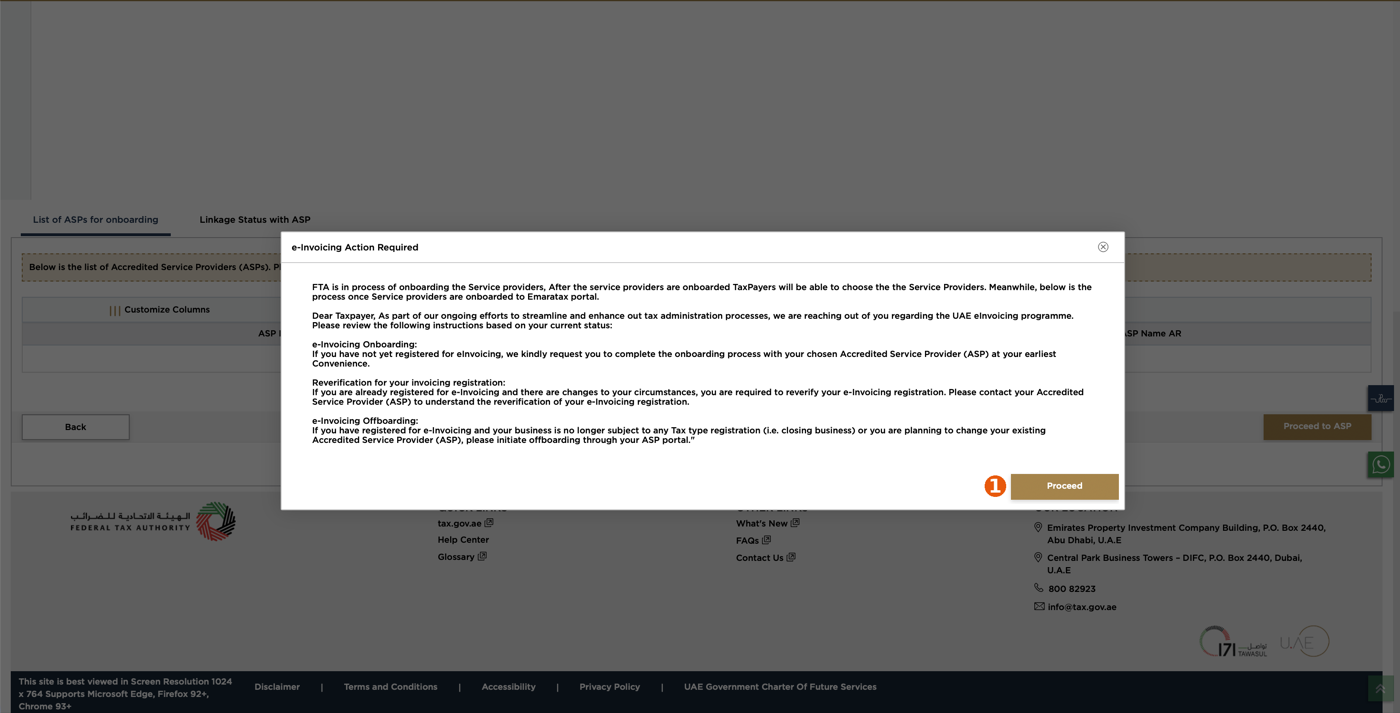
Step 2.3 Read the e-Invoicing Action Required notice and click Proceed
- Purpose
- Understand which e-Invoicing process applies to you before you choose a service provider.
- Where to go
- The e-Invoicing Action Required pop-up in EmaraTax.
- What to do
- Read the notice in the pop-up window. Click Proceed at the bottom-right of the pop-up.
- What the notice means
- The notice is the FTA’s own message about the e-Invoicing programme. It covers three situations: e-Invoicing Onboarding: if you have not yet registered for e-Invoicing, you are asked to complete onboarding with your chosen ASP. This is the process this guide covers. Reverification: if you are already registered and your circumstances have changed, you must reverify your registration. The FTA asks you to contact your ASP to understand how. Offboarding: if you are registered but your business is no longer subject to any tax registration (for example, you are closing the business) or you plan to change your ASP, the FTA asks you to start offboarding through your ASP portal.
- Expected result
- The pop-up closes and the List of ASPs for onboarding page is shown.
- If something goes wrong
- If the pop-up does not appear, simply continue to Phase 3. If you are not sure whether the onboarding, reverification or offboarding process applies to your company, contact InvoiceNow Biz support before continuing.
Phase 3: Select InvoiceNow Biz F.Z.C. as Your ASP
This is the most important choice in Stage 1. Take your time and check each detail before you click Proceed to ASP.
Step 3.1 Check your TIN and find InvoiceNow Biz
- Purpose
- Make sure the registration is for the right company, then locate InvoiceNow Biz F.Z.C. in the list of accredited providers.
- Where to go
- The List of ASPs for onboarding tab in EmaraTax.
- What to do
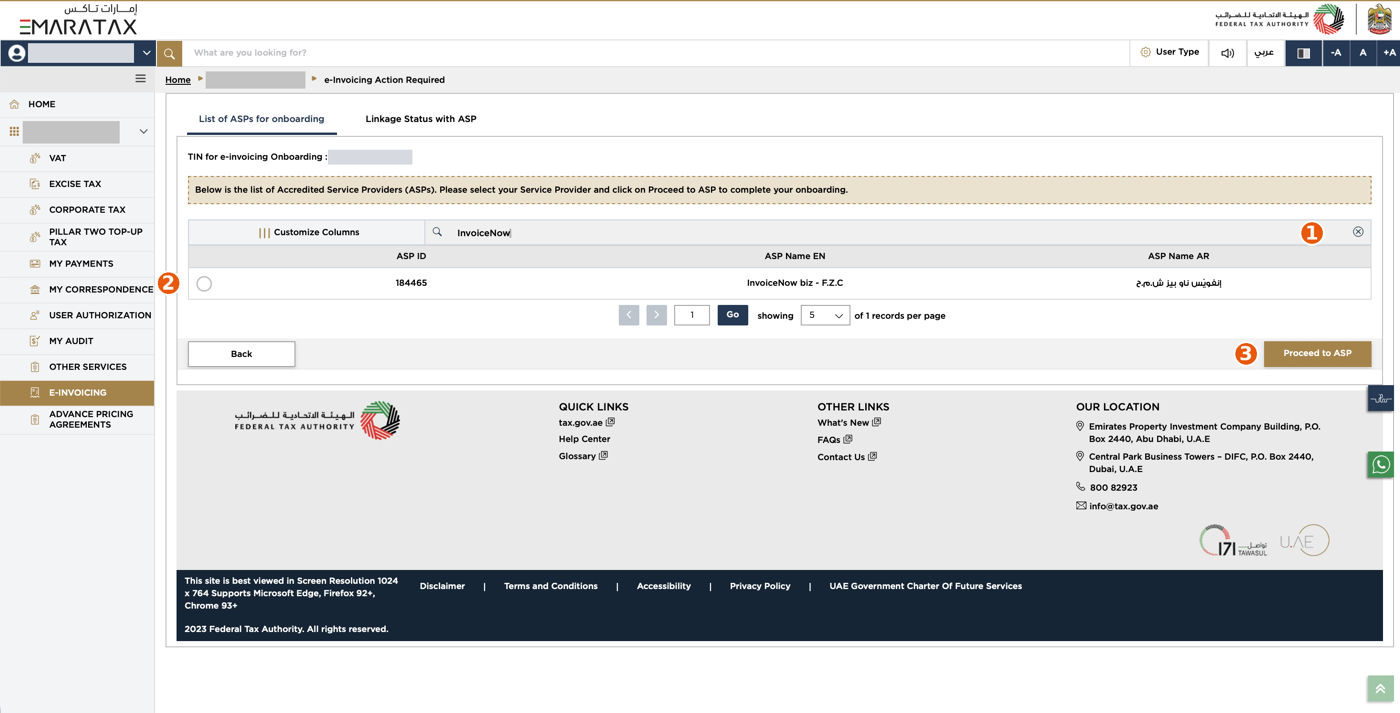
- Find the line TIN for e-invoicing Onboarding near the top of the page. It shows the Tax Identification Number (TIN) of the company being onboarded. Check that this TIN belongs to the company you are registering. Your TIN is also shown on your dashboard under Your TIN for e-invoicing Onboarding. Click the search field above the list of ASPs (beside Customize Columns). Type InvoiceNow in the search field. Review the filtered result. InvoiceNow Biz F.Z.C. appears in the ASP Name EN column as InvoiceNow biz - F.Z.C, with its Arabic name in the ASP Name AR column. The ASP ID shown beside it is 184465.
- What to look for
- The TIN line and the search field (marker 1 in Figure 7), and a single matching row for InvoiceNow Biz.
- Expected result
- The list shows InvoiceNow Biz F.Z.C. with a selection circle (radio button) at the start of the row.
- If something goes wrong
- If the TIN is not the one for your company, do not continue. Click Back, return to the Home page and select the correct company (Step 1.2). If the search returns no result, clear the search box, retype InvoiceNow and check the spelling. If the ASP still does not appear, contact InvoiceNow Biz support.
Step 3.2 Select InvoiceNow Biz F.Z.C.
- Purpose
- Tell the FTA that InvoiceNow Biz F.Z.C. is your chosen service provider.
- Where to go
- The filtered ASP list on the same page.
- What to do
- Click the radio button (the small circle) at the start of the row for InvoiceNow biz - F.Z.C (marker 2 in Figure 7). The circle fills in when selected. Check once more that the row you have selected shows InvoiceNow biz - F.Z.C and ASP ID 184465. Click Proceed to ASP at the bottom-right of the list (marker 3 in Figure 7).
- What to look for
- A filled radio button on the InvoiceNow Biz row. The Proceed to ASP button is at the bottom-right, and a Back button is at the bottom-left.
- Expected result
- A Confirmation dialog appears (Figure 8).
- If something goes wrong
- If you selected the wrong row, click the radio button of the correct row before clicking Proceed to ASP. If you have already proceeded with a different ASP, stop and contact InvoiceNow Biz support before doing anything else.
Step 3.3 Confirm the redirect to the InvoiceNow Biz portal
- Purpose
- Move from EmaraTax to the InvoiceNow Biz portal, where the rest of your registration takes place.
- Where to go
- The Confirmation dialog that opens in EmaraTax.
- What to do
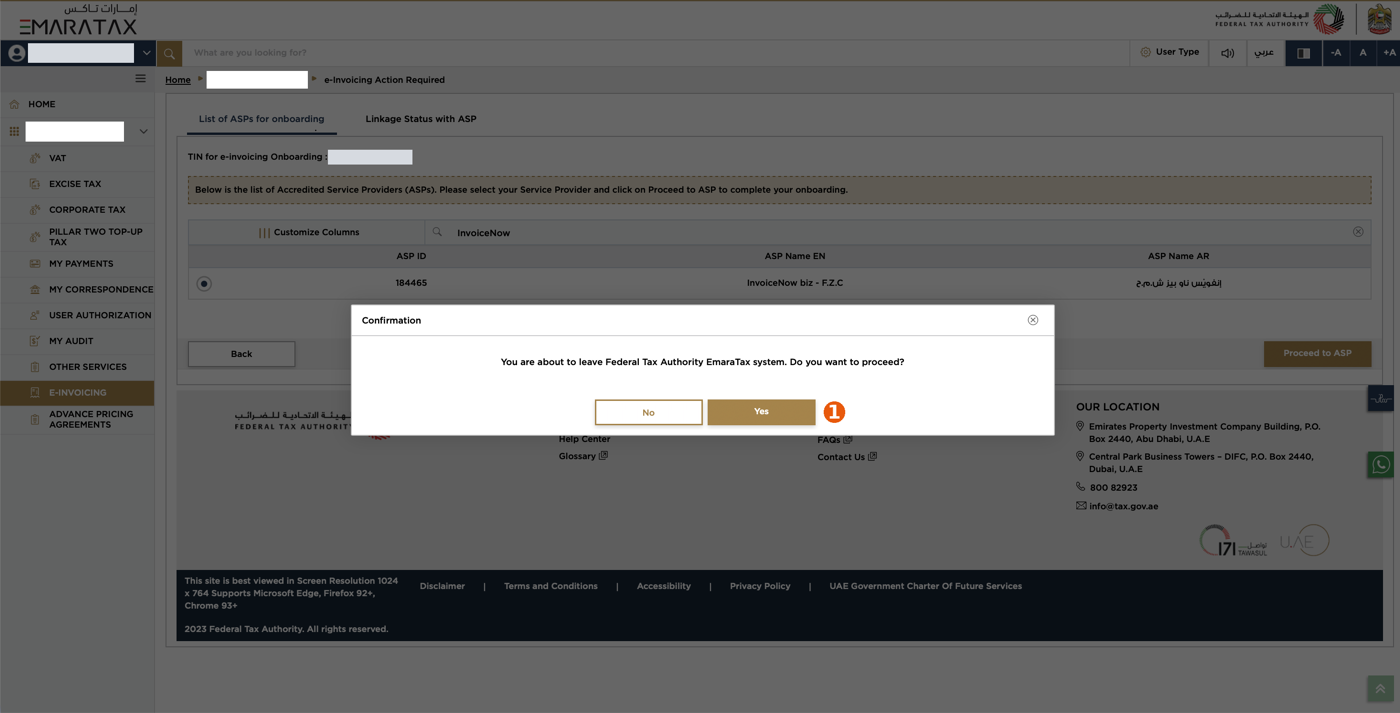
- Read the message: “You are about to leave Federal Tax Authority EmaraTax system. Do you want to proceed?” Click Yes (marker 1 in Figure 8). Clicking No keeps you in EmaraTax.
- What to look for
- The two buttons, No and Yes, at the bottom of the dialog.
- Expected result
- You are redirected from EmaraTax to the InvoiceNow Biz portal. The Verify Identity page opens (Phase 4). This redirect is expected, because the remaining steps are done on the ASP’s portal.
- If something goes wrong
- If nothing happens after a few seconds, check whether your browser blocked a pop-up or a new tab, and allow it for EmaraTax. If the redirect still fails, return to the ASP list in EmaraTax and try once more; if it fails again, contact InvoiceNow Biz support.
Phase 4: Verify Your Identity on the InvoiceNow Biz Portal
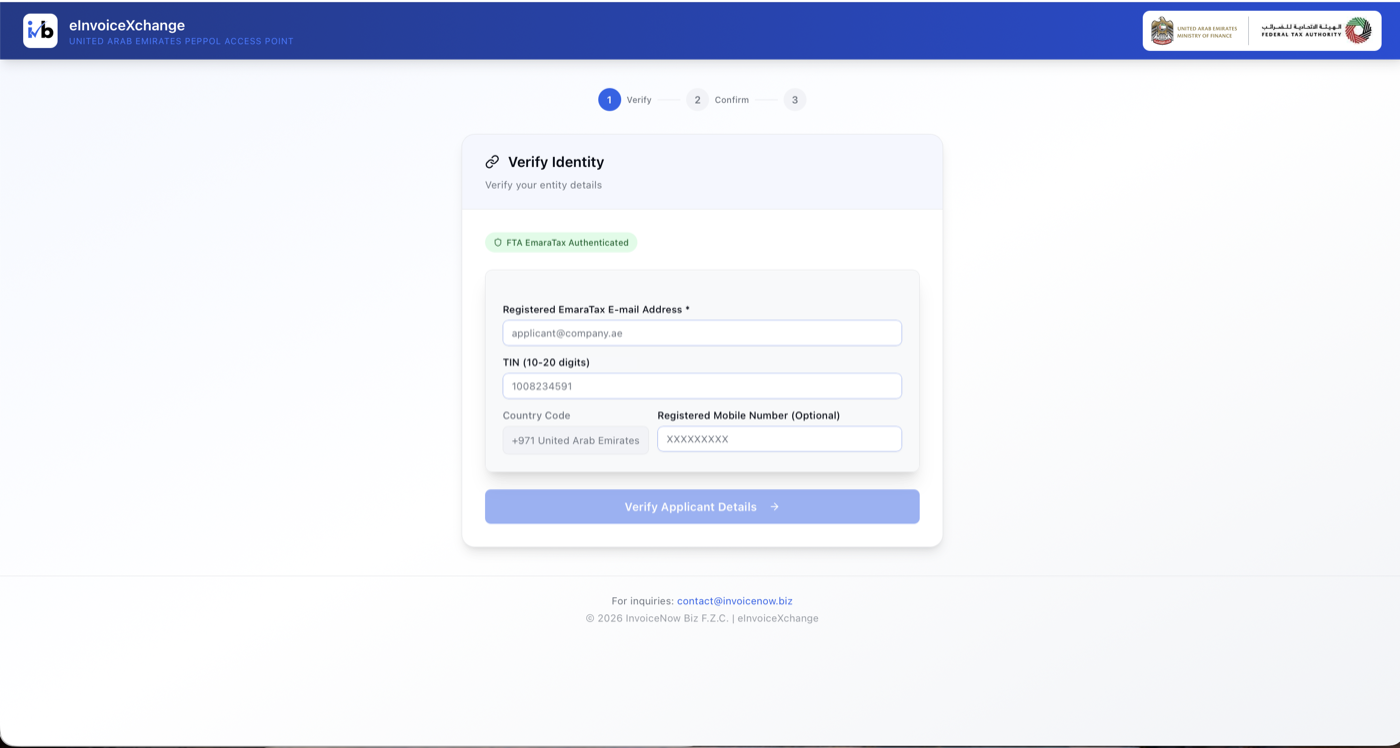
You have now left EmaraTax and arrived on the InvoiceNow Biz portal. The page is titled Verify Identity and shows a green label, FTA EmaraTax Authenticated, which confirms that EmaraTax has passed your sign-in on to the portal. A progress indicator at the top shows the stages of this process: Verify, Confirm and a final step.
Step 4.1 Enter your applicant details
- Purpose
- Confirm who you are and which company you are registering.
- Where to go
- The Verify Identity page on the InvoiceNow Biz portal.
- What to do
- In Registered EmaraTax E-mail Address, enter the e-mail address associated with your EmaraTax account, the one you used to sign in. This field is required (marked with an asterisk). In TIN (Tax Identifier Number), enter the Tax Identification Number of the company you are registering, exactly as shown in EmaraTax. Leave Country Code as it is. It is pre-filled as +971 United Arab Emirates and appears greyed out. If you wish, enter your mobile number in Registered Mobile Number (Optional). Review the e-mail address and TIN again and check they belong to the correct company. Click Verify Applicant Details.
- What each field means
- Registered EmaraTax E-mail Address: the portal uses this address to identify you as the applicant, so type it accurately. TIN (Tax Identifier Number): the company’s TIN. Check it against your FTA records. It is not the same as your VAT TRN, which is a longer number. Enter your own company’s TIN, never an example from a guide or screenshot. Country Code: the dialling code for the mobile number. It shows United Arab Emirates (+971). Registered Mobile Number (Optional): the mobile number registered for your account. Because the field is labelled optional, you may leave it empty.
- What to look for
- The four fields and the Verify Applicant Details button at the bottom of the form (Figure 9).
- Expected result
- The portal verifies your details and opens the Confirm Details page (Phase 5).
- If something goes wrong
- Check the e-mail address and TIN for typing errors, and make sure both match your EmaraTax records. If the page does not show FTA EmaraTax Authenticated, go back to EmaraTax and start again from Proceed to ASP (Step 3.2). If verification still fails, contact InvoiceNow Biz support at contact@invoicenow.biz.
Phase 5: Review and Confirm Your Company Details
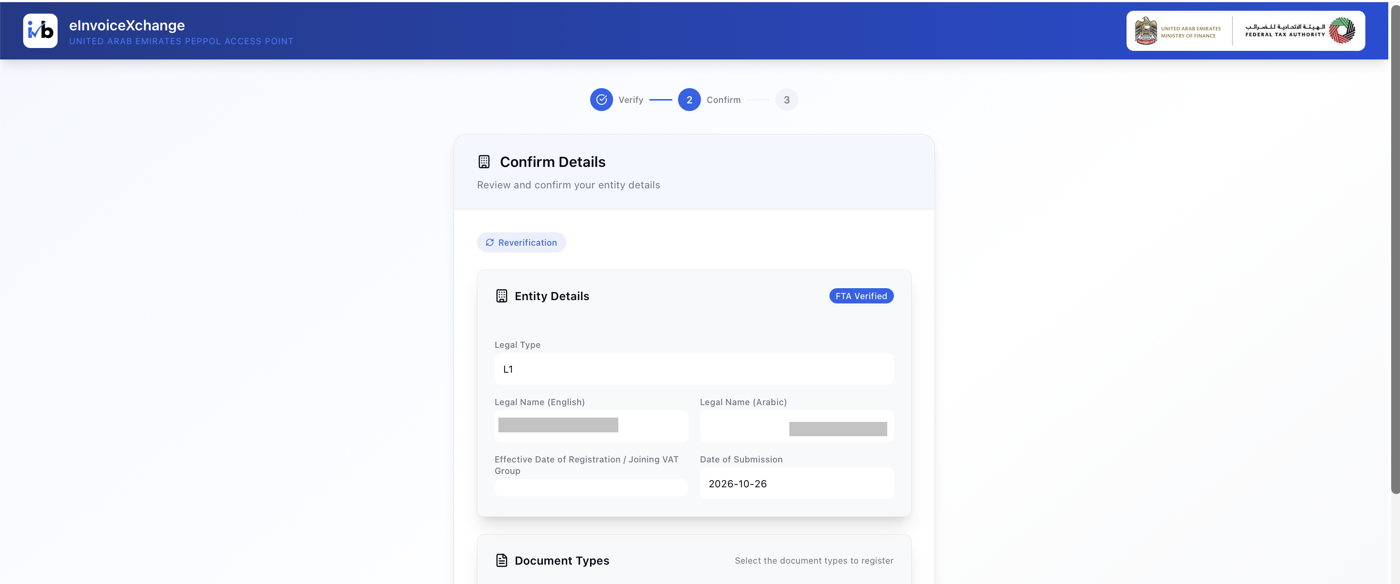
After verification, the portal shows a Confirm Details page with an Entity Details section. The details are retrieved through the FTA verification process and are labelled FTA Verified. Do not assume they are right. Read each one carefully.
Step 5.1 Review your entity details
- Purpose
- Make sure the registration is made for the correct company, with the correct details.
- Where to go
- The Confirm Details page on the InvoiceNow Biz portal.
- What to do
- Read every field in the Entity Details section (described below). Check that the Legal Name and VAT TRN match your company’s FTA records. If everything is correct, scroll down to the Document Types section (Phase 6). If anything looks wrong, do not submit. See the note below the table.
- What each field means
- Legal Type: the legal classification of your registered entity. Legal Name (English): your company’s registered name in English. Legal Name (Arabic): your company’s registered name in Arabic, where applicable. VAT TRN: your company’s VAT Tax Registration Number. Effective Date of Registration / Joining VAT Group: the date recorded in the FTA’s records. Date of Submission: the date associated with this registration request.
- What to look for
- A New Registration label at the top, the Entity Details box with an FTA Verified label, and the fields above (Figure 10).
- Expected result
- You have checked that your company details are correct and are ready to review the document types.
- If something goes wrong
- If any detail is wrong, do not knowingly submit incorrect information. Contact InvoiceNow Biz support at contact@invoicenow.biz and tell them which field looks wrong. Because the details come from FTA records, a correction may need to be made with the FTA through EmaraTax.
Phase 6: Review the Document Types and Submit
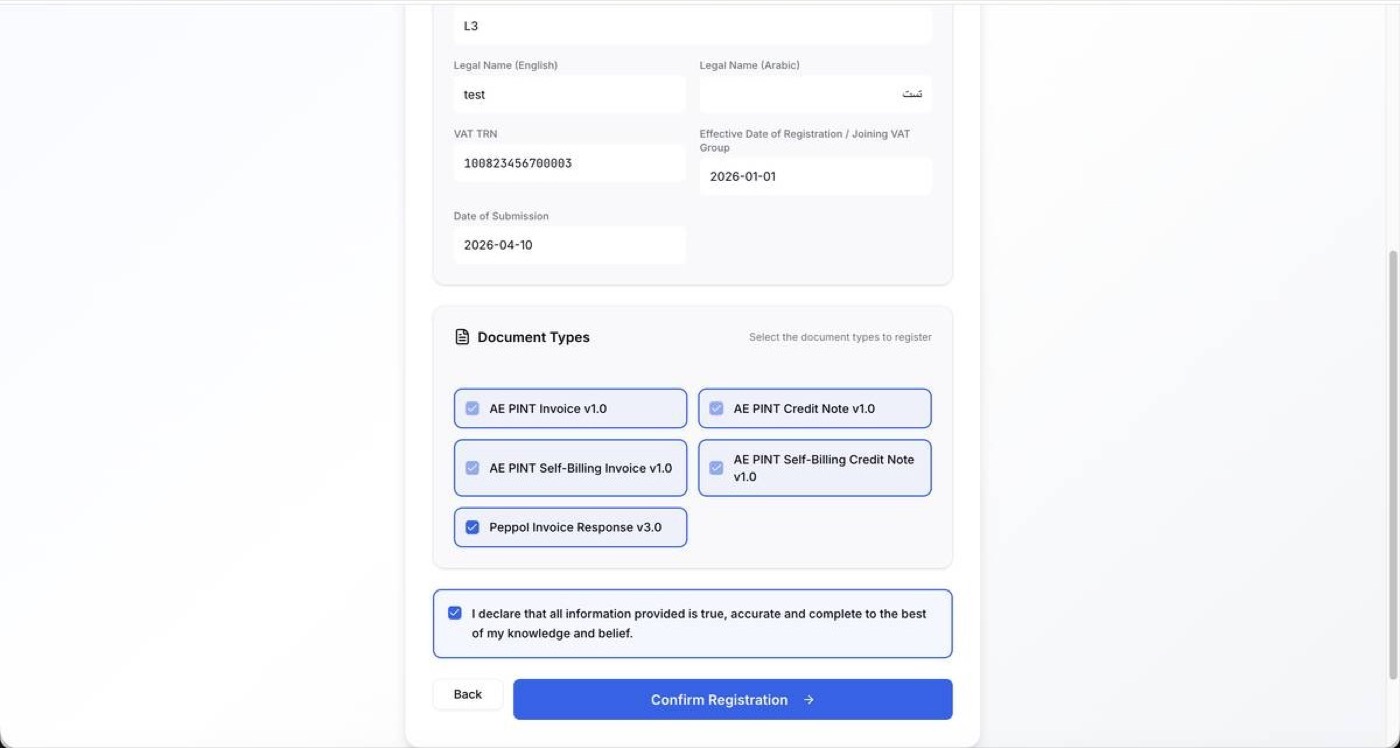
Below the entity details, the portal shows a Document Types section with the heading “Select the document types to register”. These are the types of electronic document your company will be registered to exchange on the Peppol network. Here you review them, make your declaration and submit.
Step 6.1 Review the document types, make the declaration and confirm
- Purpose
- Understand which document types you are registering, and confirm that your information is true.
- Where to go
- The lower part of the Confirm Details page, in the Document Types section.
- What to do
- Scroll down to the Document Types section. Review the document types. In the example screen all five are ticked. If your screen already has the relevant types ticked, check them before confirming. Do not tick or untick anything unless InvoiceNow Biz or the portal instructs you to. Read the declaration: “I declare that all information provided is true, accurate and complete to the best of my knowledge and belief.” Click the checkbox beside the declaration. Do this only after you have reviewed all the information. Click Confirm Registration. (Use Back if you want to return to the previous step instead.)
- What to look for
- The ticked document types, the declaration checkbox and the Confirm Registration button. The button appears faded until the declaration is ticked (Figure 11).
- Expected result
- The portal submits your registration request and the Registration Complete page opens (Phase 7).
- If something goes wrong
- If Confirm Registration stays faded, make sure the declaration checkbox is ticked. If the registration completion page does not appear after a minute, do not click again and again: check your e-mail, then contact InvoiceNow Biz support.
What the document types mean
The reference screen lists the following document types. The explanations below are brief and general.
| Document type | What it is |
|---|---|
| AE PINT Invoice v1.0 | The supported UAE e-Invoice document type for standard invoicing. |
| AE PINT Credit Note v1.0 | A credit note, used to record an adjustment or reduction relating to an invoice. |
| AE PINT Self-Billing Invoice v1.0 | A self-billing invoice, used in applicable self-billing arrangements. |
| AE PINT Self-Billing Credit Note v1.0 | A credit note for applicable self-billing arrangements. |
| Peppol Invoice Response v3.0 | A document used to communicate a response relating to an invoice within the Peppol process. |
Phase 7: Review and accept the UAE ASP Service Terms
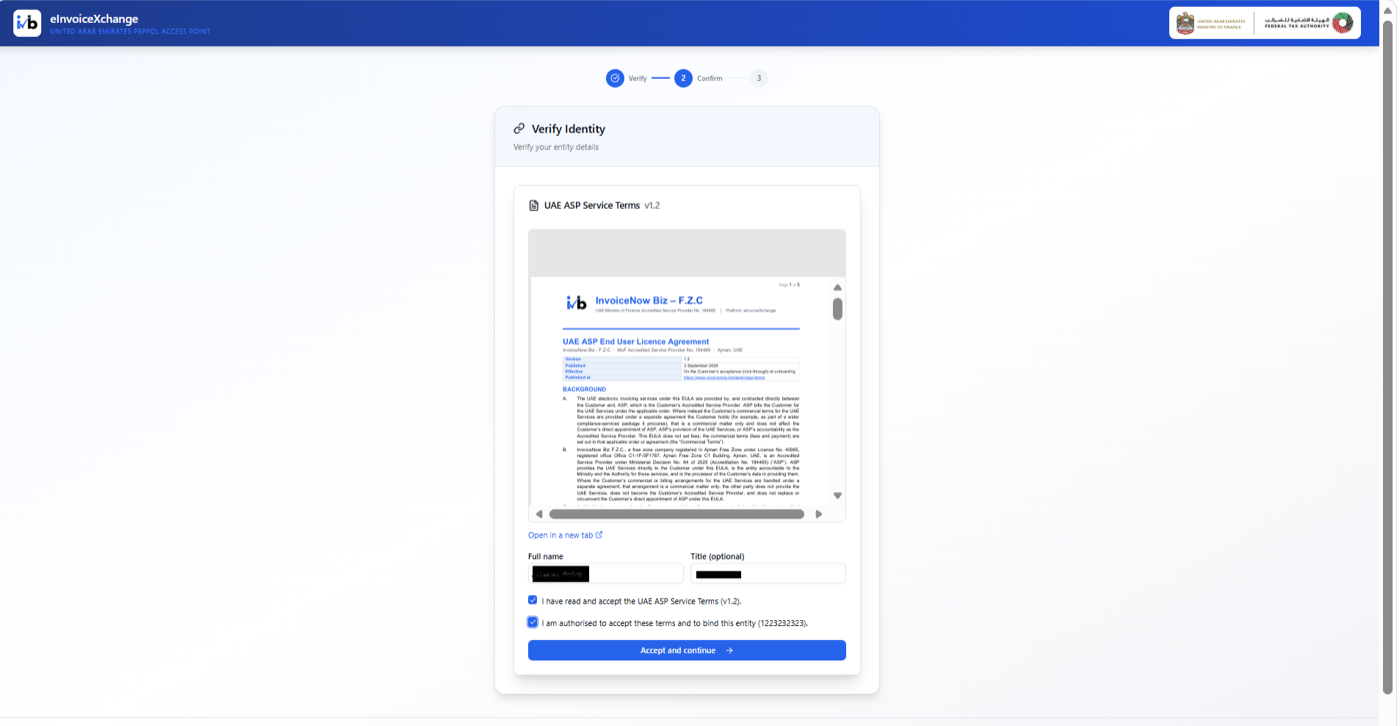
Before registration is completed, the portal displays the UAE ASP Service Terms. Read the terms carefully, provide your details as the person accepting them, and confirm that you are authorised to bind the company.
Step 7.1 Review and accept the UAE ASP Service Terms
- Purpose
- Read the service terms and confirm that you are authorised to accept them on behalf of the entity.
- Where to go
- The Verify Identity page on the InvoiceNow Biz portal, in the UAE ASP Service Terms section.
- What to do
- 1. Read the UAE ASP Service Terms (v1.2). Use Open in a new tab if you need a larger view.2. Enter your own full name in Full name.3. Enter your job title in Title (optional), if applicable.4. Tick the checkbox confirming that you have read and accept the service terms.5. Tick the checkbox confirming that you are authorised to accept the terms and bind the entity. Do this only if you have that authority.6. Click Accept and continue.
- What the terms cover
- The terms describe the service relationship and the conditions for using InvoiceNow Biz as the UAE Accredited Service Provider. Read the complete terms before accepting; this summary does not replace the agreement.
- What to look for
- The UAE ASP Service Terms (v1.2), Full name, optional Title, both acknowledgement checkboxes and the Accept and continue button.
- Expected result
- The portal accepts the service-terms acknowledgement and continues to the Registration Complete page (Phase 8).
- If something goes wrong
- If Accept and continue is disabled, check that both boxes are ticked and that Full name is completed. Do not confirm authorisation unless you are permitted to bind the entity. If you are unsure about the terms or your authority, contact InvoiceNow Biz support at contact@invoicenow.biz.
Phase 8: Confirm Successful Registration
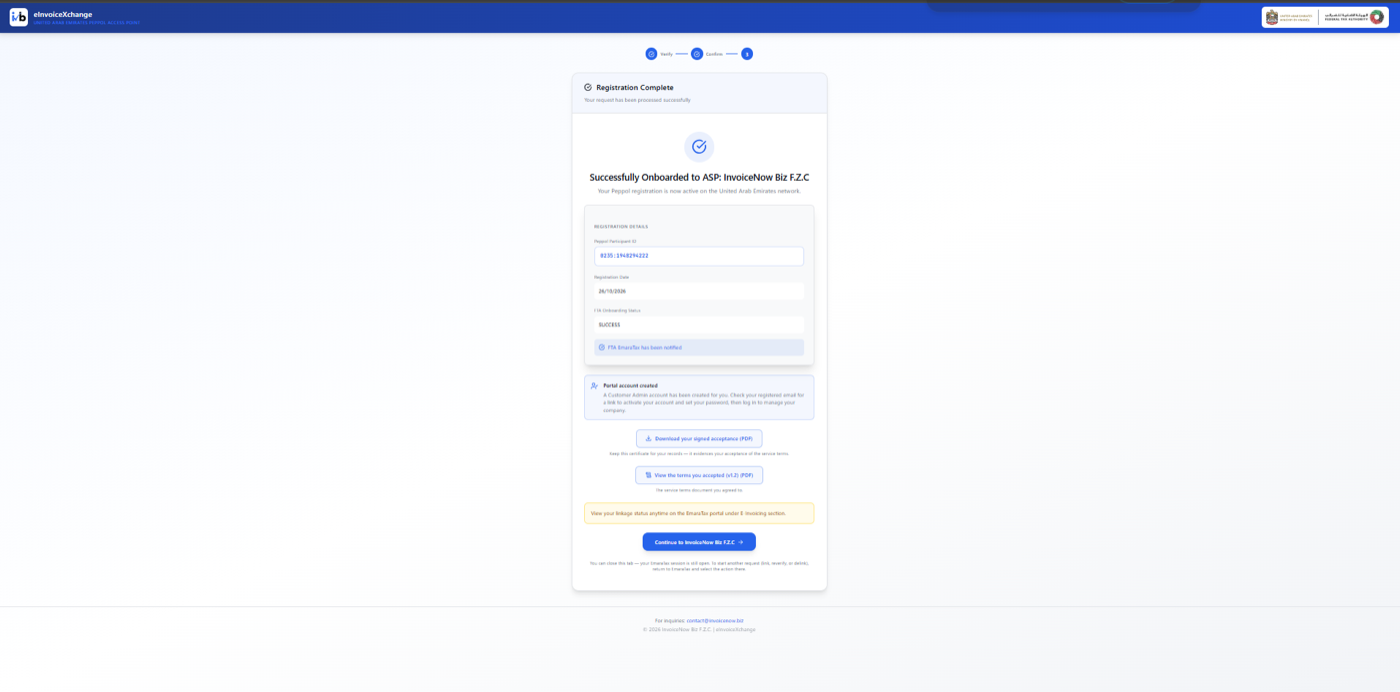
After you click Confirm Registration, the portal shows a Registration Complete page with the message “Your request has been processed successfully”. The progress indicator at the top shows Verify and Confirm completed.
Step 8.1 Check the registration details and keep a record
- Purpose
- Confirm that registration worked and keep the details you will need later.
- Where to go
- The Registration Complete page on the InvoiceNow Biz portal.
- What to do
- Wait for the Registration Complete page to appear. Do not close the page or click Back while it loads. Confirm that the page says the registration was successful. Note your Peppol Participant ID and the Registration Date. Copy them into your records. Check the FTA Onboarding Status. Read the messages at the bottom of the page. Click the continue button at the bottom of the page. Its label includes the name of your service provider.
- What the page shows
- Peppol Participant ID: the identifier that represents your company on the Peppol network. Other businesses and systems use it to find you. Keep it safe, because you may be asked for it by your customers, suppliers or your accounting system provider. Registration Date: the date the registration was processed. FTA Onboarding Status: the status of your onboarding as reported by the portal. When the page shows Active, it means the portal reports your onboarding as active. FTA EmaraTax has been notified: the portal confirms that the FTA has been informed of your registration.. View your linkage status: a reminder that you can check your linkage status at any time in EmaraTax, under E-Invoicing.
- What to look for
- The Registration Complete heading, the Peppol Participant ID box, the status boxes and the continue button (Figures 12 and 13).
- Expected result
- You have the Peppol Participant ID noted down, and clicking the continue button opens the welcome page of the InvoiceNow Biz portal.
- If something goes wrong
- If the Registration Complete page does not appear, or you cannot find your Peppol Participant ID, do not submit a second registration. Check your e-mail for a message from InvoiceNow Biz, and contact support at contact@invoicenow.biz.
Step 8.2 Optional: check your linkage status in EmaraTax
- Purpose
- See for yourself in EmaraTax that your company is linked to InvoiceNow Biz.
- Where to go
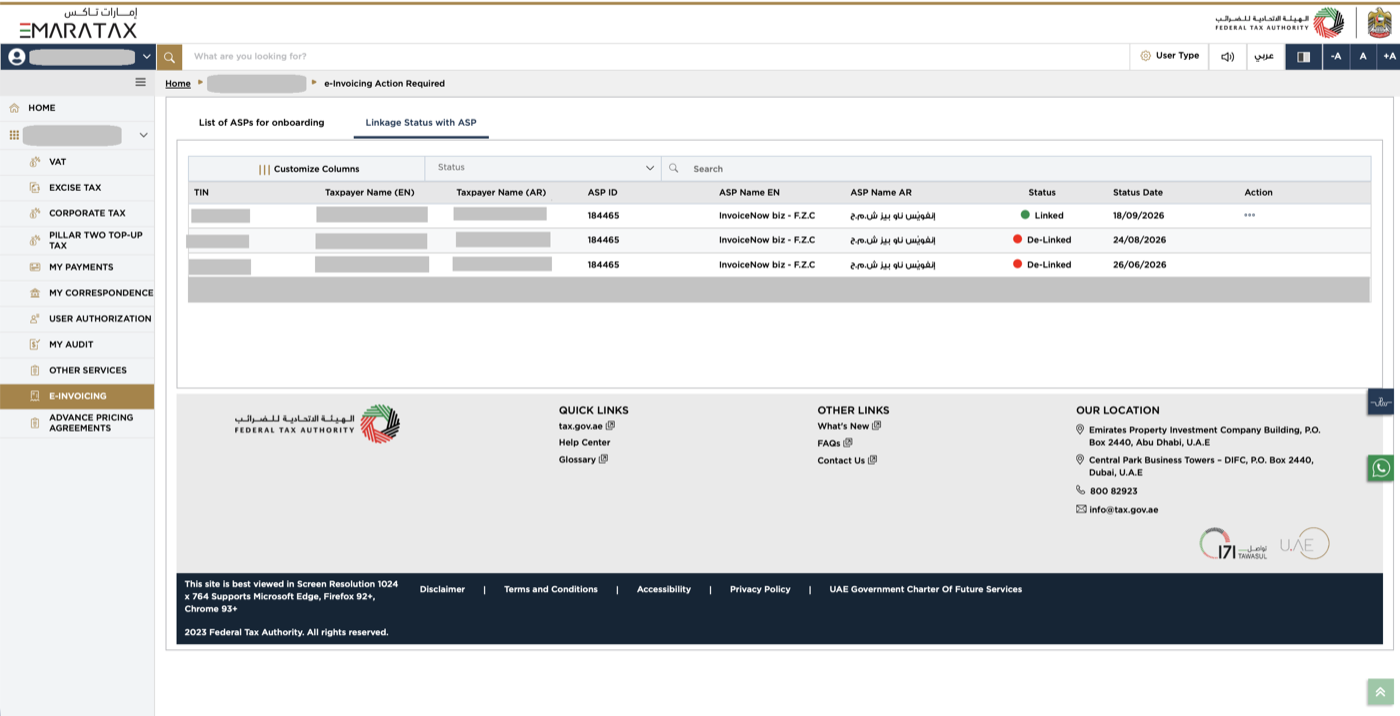
- EmaraTax, in the E-INVOICING section, on the Linkage Status with ASP tab.
- What to do
- Return to EmaraTax. Your session may still be open in another browser tab. Click E-INVOICING in the left-hand menu and open the Linkage Status with ASP tab. Find your company’s row. It shows the TIN, the ASP name and a Status (for example, Linked) with a status date.
- Expected result
- Your company is listed with InvoiceNow Biz F.Z.C. as the ASP.
- If something goes wrong
- If your company is not listed, wait a short time and refresh the page. If it is still missing, contact InvoiceNow Biz support.
Phase 9: Activate Your Account and Sign in to the InvoiceNow Biz Portal
After your registration is complete, you receive an e-mail asking you to set up your account. You must follow it to activate your access. This phase takes you from the welcome page to your first sign-in. The portal software behind InvoiceNow Biz is called eInvoiceXchange, so you will see that name in the e-mail and on the sign-in pages, together with InvoiceNow Biz F.Z.C.
Step 9.1 Accept your invitation e-mail
- Purpose
- Start the activation of your account. The e-mail contains a one-time link for setting up your access.
- Where to go
- The inbox of the e-mail address you used for onboarding.
- What to do
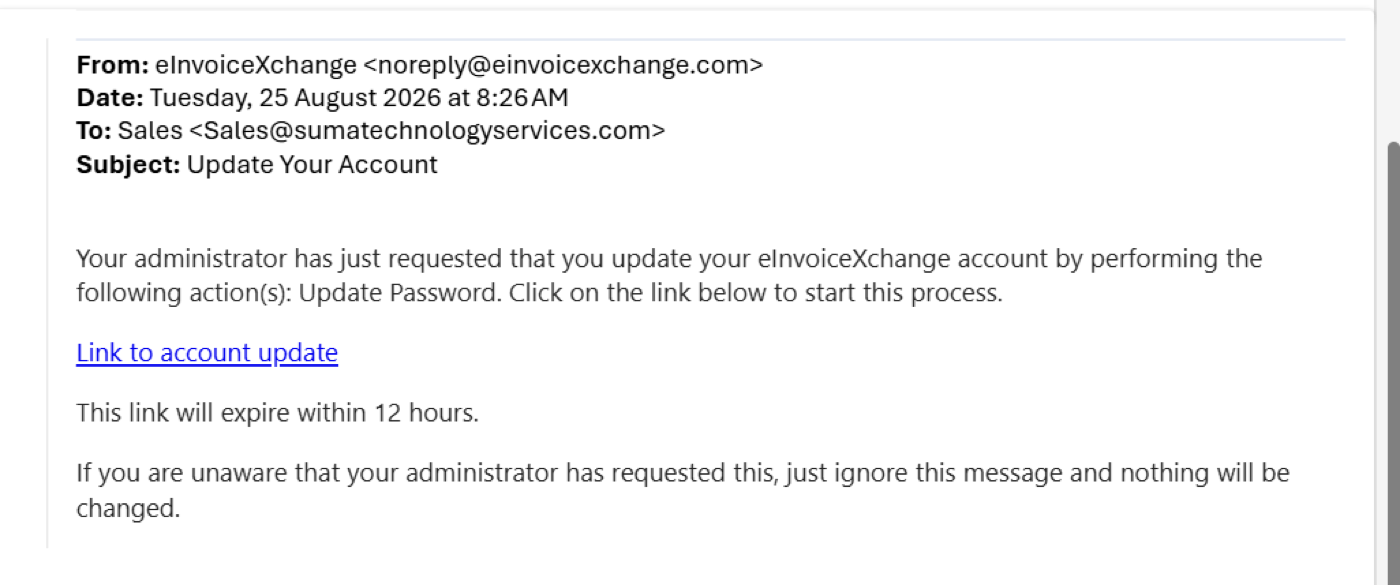
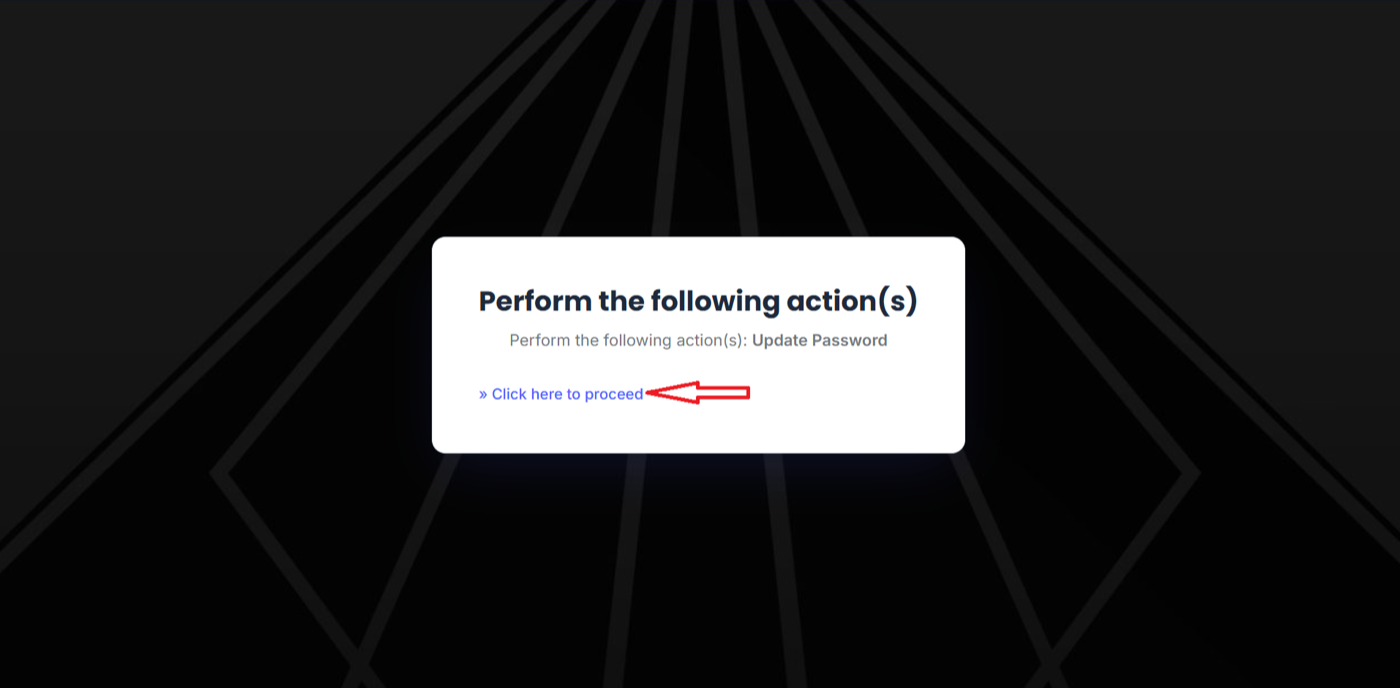
- Find the e-mail from eInvoiceXchange (noreply@einvoicexchange.com) with the subject Update Your Account. If you cannot see it, check your spam or junk folder. Open it. It says that your administrator has requested that you update your eInvoiceXchange account by performing the action Update Password. Click the link Link to account update. The link expires within 12 hours, so use it as soon as you can. On the confirmation screen titled Perform the following action(s), which shows Update Password, click » Click here to proceed.
- What to look for
- The e-mail in Figure 16 and the confirmation screen in Figure 17.
- Expected result
- The page for setting up your account security opens (Step 8.3).
- If something goes wrong
- If you did not expect the e-mail, the e-mail itself says you can ignore it and nothing will be changed. If the link has expired or the e-mail never arrives, contact InvoiceNow Biz support at contact@invoicenow.biz.
Step 9.2 Set up the Mobile Authenticator
- Purpose
- Add a second layer of security to your account, using a code generated on your phone.
- Where to go
- The Mobile Authenticator setup page that opens after the confirmation screen.
- What to do
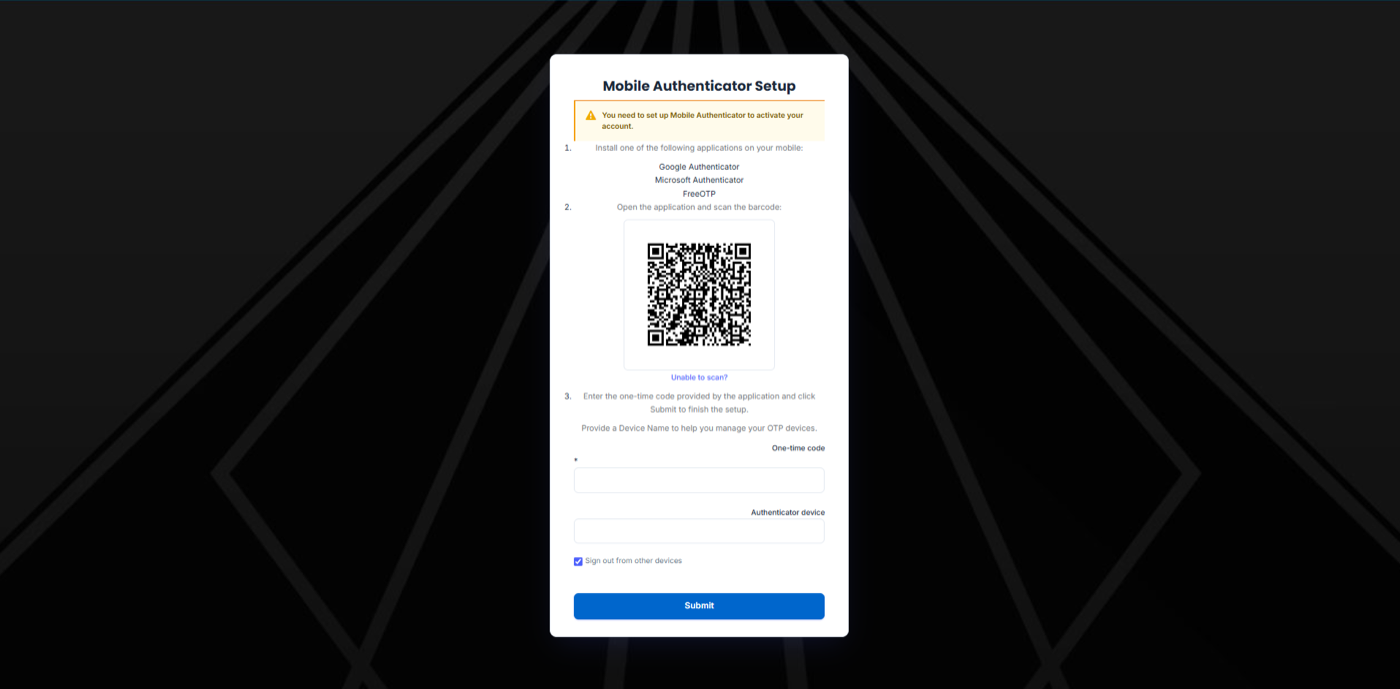
- Install one of the supported authenticator apps on your phone: Google Authenticator, Microsoft Authenticator or FreeOTP. Open the app and scan the QR code displayed on the page. Type the one-time code that the app shows into the one-time code box on the page. Enter a name for the authenticator device (for example, the name of your phone) so that you can recognise it later. Click Submit.
- What to look for
- The QR code, the one-time code box, the device name box and the Submit button (Figure 18).
- Expected result
- Your authenticator is linked to your account and you move on to setting your password.
- If something goes wrong
- One-time codes change every few seconds. If a code is rejected, wait for the app to show a new code and type it again. Check that your phone’s clock is correct. If you still cannot continue, contact InvoiceNow Biz support.
Step 9.3 Set your new password
- Purpose
- Choose the password you will use to sign in to the InvoiceNow Biz portal.
- Where to go
- The Update password page.
- What to do
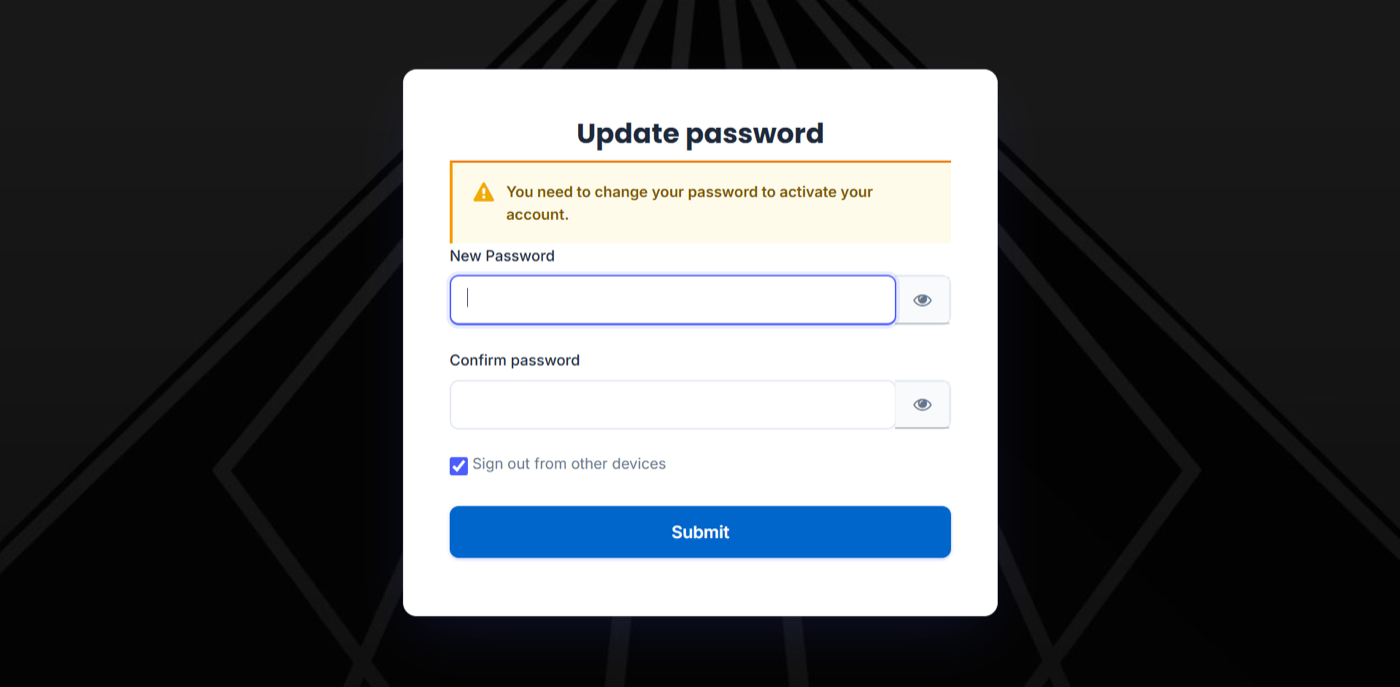
- Read the message: “You need to change your password to activate your account.” Type your new password in New Password. You can click the eye icon at the end of the box to show or hide what you typed. Type the same password again in Confirm password. Leave Sign out from other devices ticked. It is ticked by default, and it keeps your account safer by signing out any other session. Click Submit.
- What to look for
- The two password boxes, the Sign out from other devices checkbox and the blue Submit button (Figure 19).
- Expected result
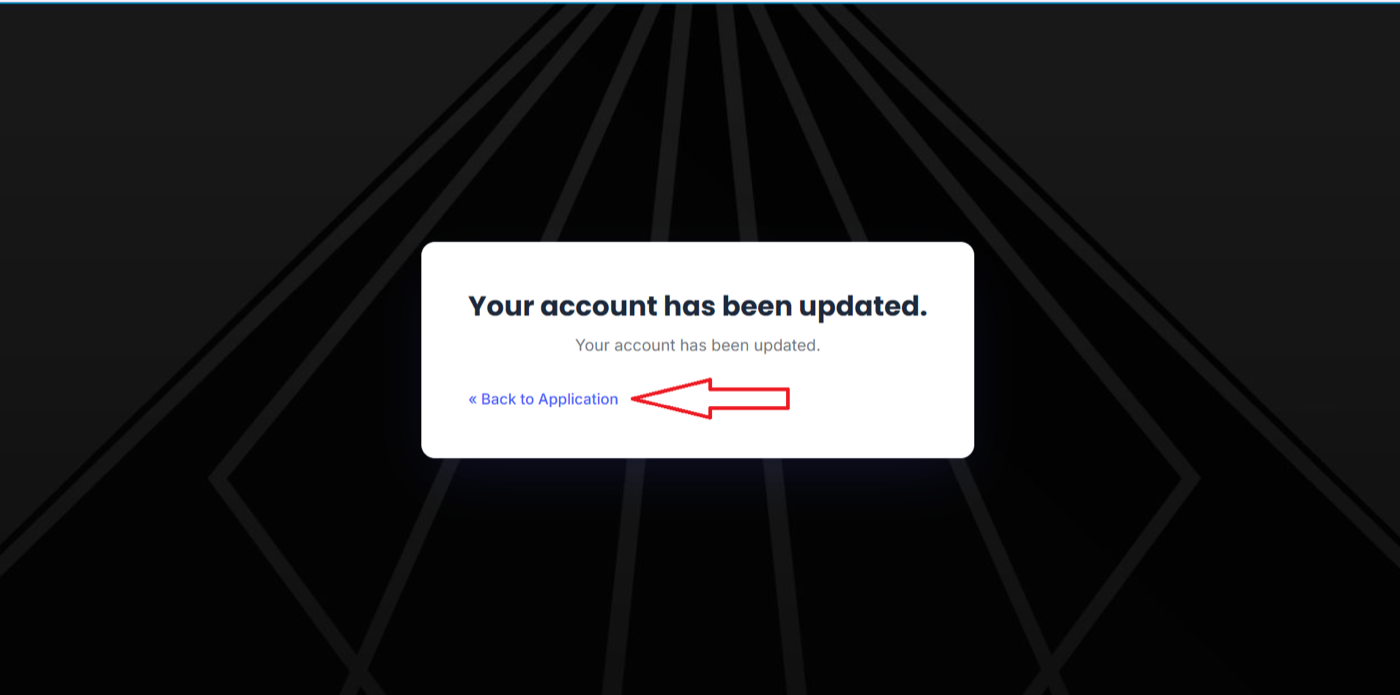
- A page titled Your account has been updated. appears (Figure 20). Your account is now active. You can click « Back to Application to go to the portal.
- If something goes wrong
- If the page rejects your password, choose a longer or less predictable one and type it carefully in both boxes. Use a password you do not use anywhere else, and never share it with anyone, including InvoiceNow Biz staff.
Step 9.4 Sign in to the InvoiceNow Biz portal
- Purpose
- Sign in for the first time and reach your dashboard.
- Where to go
- The InvoiceNow Biz portal sign-in page, reached by clicking Go to Portal Login on the welcome page or Back to Application after Step 8.3.
- What to do
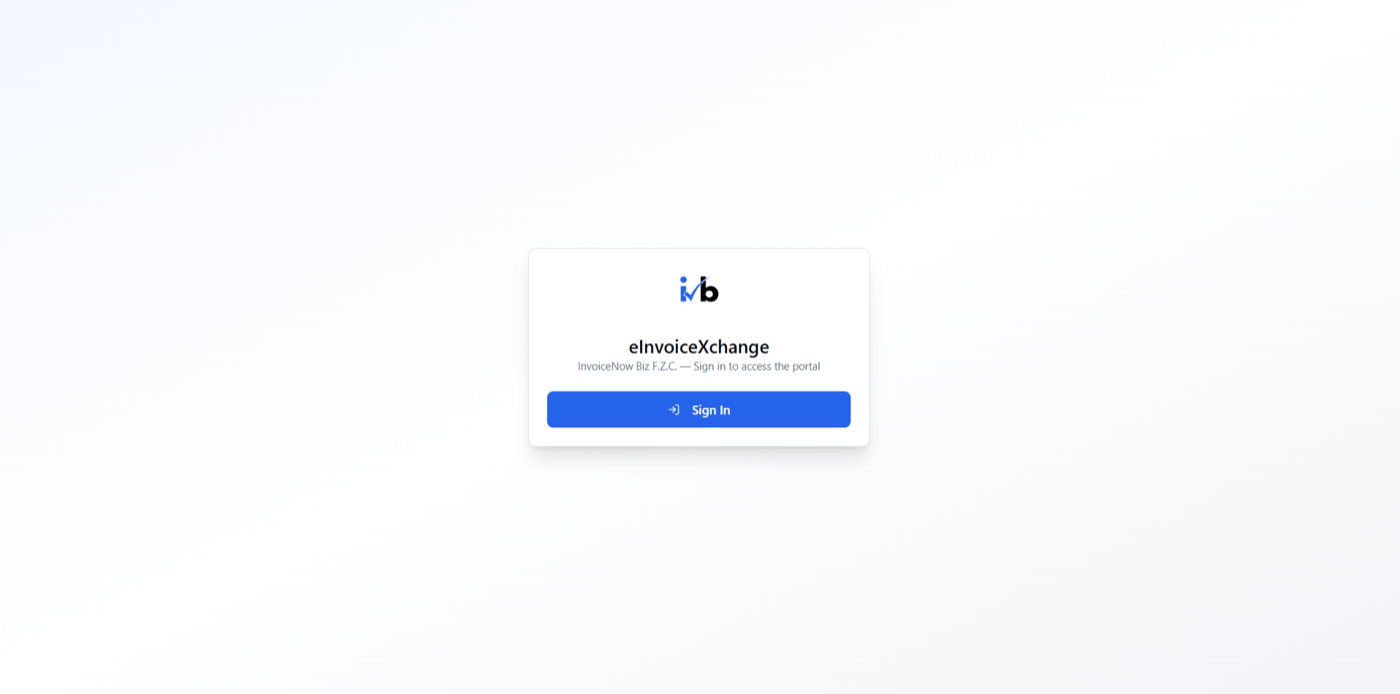
- On the portal page, which shows eInvoiceXchange and InvoiceNow Biz F.Z.C. — Sign in to access the portal, click Sign In (Figure 21). On the Sign in to your account page, type your e-mail address (the one you used for onboarding) in Username or email. Type the password you have just created in Password. Click Sign In. If the portal asks for a one-time code, open your authenticator app and type the code it shows. If you forget your password later, click Forgot Password? on this page.
- What to look for
- The Sign In button on the portal page; the Username or email and Password boxes, the Forgot Password? link and the blue Sign In button on the next page.
- Expected result
- You land on your Dashboard. The full menu, including Customers, Users, Documents and Participants, is available on the left-hand side. You can now begin using the available e-Invoicing services, subject to any further setup that applies to your account.
- If something goes wrong
- Check that you typed the e-mail address you used for onboarding and the new password you created in Step 8.4, not your EmaraTax password. If you cannot sign in, use Forgot Password? or contact InvoiceNow Biz support at contact@invoicenow.biz. Do not keep guessing passwords.
Troubleshooting
Most problems are caused by a wrong company, a typing error or a blocked browser window. Use the table below first. If a simple check does not solve the problem, contact the right support team: the FTA for EmaraTax sign-in and account problems, and InvoiceNow Biz for everything on the InvoiceNow Biz portal.
| Issue | What to Check | Recommended Action |
|---|---|---|
| You cannot sign in to EmaraTax. | Check the e-mail address and password, and whether you normally use UAE PASS. Check the security code you typed. | Use Forgot password? or Login with UAE PASS as appropriate. If the problem continues, contact the FTA through the support contacts at the bottom of EmaraTax pages. |
| The correct company is not visible. | Check that you are signed in with the right account and look at the Taxable Person List (use the search box). | Sign out and sign in with the correct account, or ask your EmaraTax administrator to give you access. |
| The E-INVOICING menu is not available. | Check that you opened the correct company dashboard and scroll the left-hand menu. | Ask your EmaraTax administrator to check your permissions, or contact the FTA. |
| The TIN shown in EmaraTax does not match the intended company. | Compare the TIN with your FTA records and check the company name in the page path. | Do not continue. Click Back, return to HOME and select the correct company. |
| Searching for “InvoiceNow” does not return the expected ASP. | Check the spelling and clear any other text in the search box. | Retype InvoiceNow. If InvoiceNow biz - F.Z.C still does not appear, contact InvoiceNow Biz support. |
| You selected the wrong ASP. | Look at the selected row before clicking Proceed to ASP. | If you have not yet proceeded, select the correct row. If you already proceeded or completed registration, stop and contact InvoiceNow Biz support. |
| The redirect to the ASP portal fails. | Check your internet connection and whether your browser blocked a pop-up or new tab. | Allow pop-ups for EmaraTax and repeat Step 3.2. If it fails again, contact InvoiceNow Biz support. |
| Applicant identity verification fails. | Check the e-mail address and TIN for typing errors. Check that the page shows FTA EmaraTax Authenticated. | Correct the values and try again. If needed, go back to EmaraTax and start again from Proceed to ASP. Then contact InvoiceNow Biz support. |
| The registered e-mail address or TIN appears incorrect. | Compare them with your EmaraTax account and your FTA records. | Enter the correct values. If your FTA records are wrong, they must be corrected with the FTA before you register. |
| The company details on the confirmation page are incorrect. | Compare the legal name, VAT TRN and dates with your FTA records. | Do not submit. Contact InvoiceNow Biz support at contact@invoicenow.biz with a note of which fields look wrong. |
| The registration completion page does not appear. | Wait a short time, then check your e-mail and your linkage status in EmaraTax (Step 7.2). | Do not submit a second registration. Contact InvoiceNow Biz support. |
| You cannot find your Peppol Participant ID. | Look at the Registration Complete page, the welcome page and any e-mail from InvoiceNow Biz. | Contact InvoiceNow Biz support at contact@invoicenow.biz and give your company name and TIN. |
| You have not received the “Update Your Account” e-mail. | Check the inbox and the spam or junk folder of the e-mail address you used for onboarding. Look for a message from eInvoiceXchange (noreply@einvoicexchange.com). | Wait a few minutes and check again. If it still has not arrived, contact InvoiceNow Biz support at contact@invoicenow.biz. |
| The account update link does not work or has expired. | The link in the e-mail expires within 12 hours. Check when the e-mail was sent. | Do not keep retrying an expired link. Contact InvoiceNow Biz support at contact@invoicenow.biz and ask for a new e-mail. |
| The authenticator code is not accepted. | Check that you scanned the QR code with the app and that you type the code currently shown, not an old one. Check your phone’s clock. | Wait for a new code and type it again. If it keeps failing, contact InvoiceNow Biz support. |
| You cannot sign in to the InvoiceNow Biz portal. | Check that you use the e-mail address from onboarding and the new password you created in Step 8.4, not your EmaraTax password. | Click Forgot Password? on the sign-in page, or contact InvoiceNow Biz support. Do not keep guessing passwords. |
Frequently Asked Questions
Why must I select an ASP in EmaraTax?
The FTA requires you to link your company to an Accredited Service Provider so that your e-Invoicing registration is connected to the provider that will send and receive your e-invoices.
Which ASP should I select for InvoiceNow Biz onboarding?
Select InvoiceNow Biz F.Z.C. In the EmaraTax list it appears as InvoiceNow biz - F.Z.C (ASP ID 184465). Do not select any other ASP.
Why am I redirected to another portal?
The remaining registration steps are carried out on the ASP’s portal. EmaraTax asks you to confirm before it sends you there.
What is my TIN, and where can I verify it?
The TIN is your company’s Tax Identification Number. EmaraTax shows it on your dashboard under Your TIN for e-invoicing Onboarding and at the top of the List of ASPs for onboarding page. It is different from your VAT TRN.
Why does the portal ask me to confirm my company details?
The details come from the FTA verification process. You are asked to check them and make a declaration, so that your registration is based on correct information.
Is the mobile number mandatory if the field says optional?
No. The field is labelled Registered Mobile Number (Optional), so you may leave it empty.
What does the Peppol Participant ID mean?
It is the identifier of your company on the Peppol network. Keep a record of it.
How do I know whether registration was successful?
The Registration Complete page says your request has been processed successfully and shows your Peppol Participant ID, registration date and onboarding status. You can also see your company with a Linked status on the Linkage Status with ASP tab in EmaraTax.
What should I do if my company details are incorrect?
Do not submit the registration. Contact InvoiceNow Biz support at contact@invoicenow.biz and say which details are wrong.
What is the “Update Your Account” e-mail?
After you register, you receive an e-mail from eInvoiceXchange with this title. It contains a link, valid for 12 hours, that lets you set up your authenticator and create your portal password. You must do this before you can sign in.
What should I do if I cannot access the customer portal?
Check that you have completed the “Update Your Account” steps (Phase 8) and sign in with your onboarding e-mail address and the password you created there. Your EmaraTax password does not work on the portal. Use Forgot Password? on the sign-in page, or contact InvoiceNow Biz support.
Can I close the onboarding tab after registration?
The registration completion page says that you can close the tab, because your EmaraTax session is still open. To start another request (link, reverify or delink), the page tells you to return to EmaraTax and select the action there.
Final Completion Checklist
Tick each item when you have finished. Once all are ticked, your onboarding is complete.
- I signed in to the correct EmaraTax account and selected the correct company.
- I opened E-INVOICING, ticked the confirmation checkbox and clicked Start.
- I read the e-Invoicing Action Required notice and clicked Proceed.
- I checked that the TIN shown in EmaraTax belongs to my company.
- I selected InvoiceNow biz - F.Z.C and clicked Proceed to ASP, then clicked Yes.
- On the InvoiceNow Biz portal, I verified my e-mail address and TIN.
- I reviewed my company details and the document types before making the declaration.
- I clicked Confirm Registration and saw the Registration Complete page.
- I saved my Peppol Participant ID and registration date.
- I opened the “Update Your Account” e-mail within 12 hours and clicked the link.
- I set up my Mobile Authenticator and created my new password.
- I signed in to the InvoiceNow Biz portal and reached my Dashboard.
InvoiceNow Biz Support
If you need help at any point, contact InvoiceNow Biz:
When you write to us, include your company name and TIN, the step where you are stuck, and what you see on screen (a screenshot helps). Never include your password or any authentication code.
For problems with signing in to EmaraTax or with your EmaraTax account, contact the Federal Tax Authority through the support channels shown at the bottom of the EmaraTax pages.
Verify a TIN or TRN on the FTA portal
Before you begin onboarding, you can confirm that your company’s Tax Identification Number (TIN) or VAT TRN is registered and active with the Federal Tax Authority (FTA). This check is free, takes about a minute, and does not require a login.
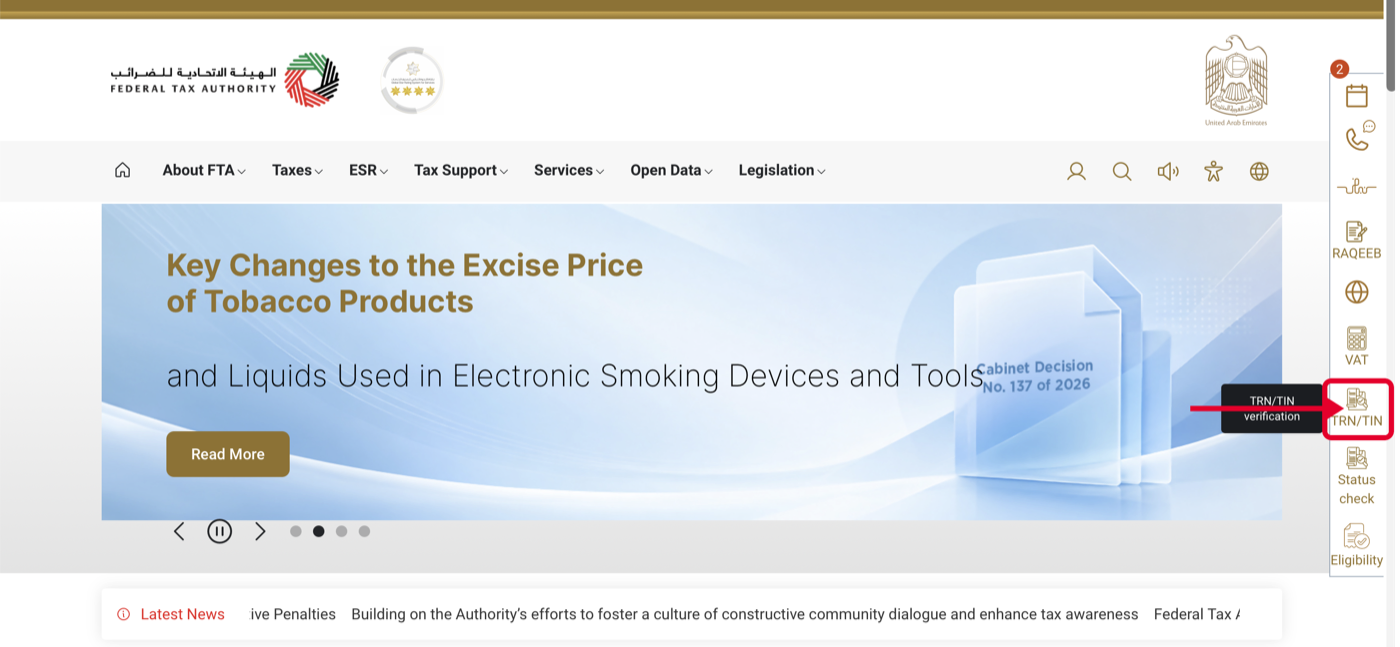
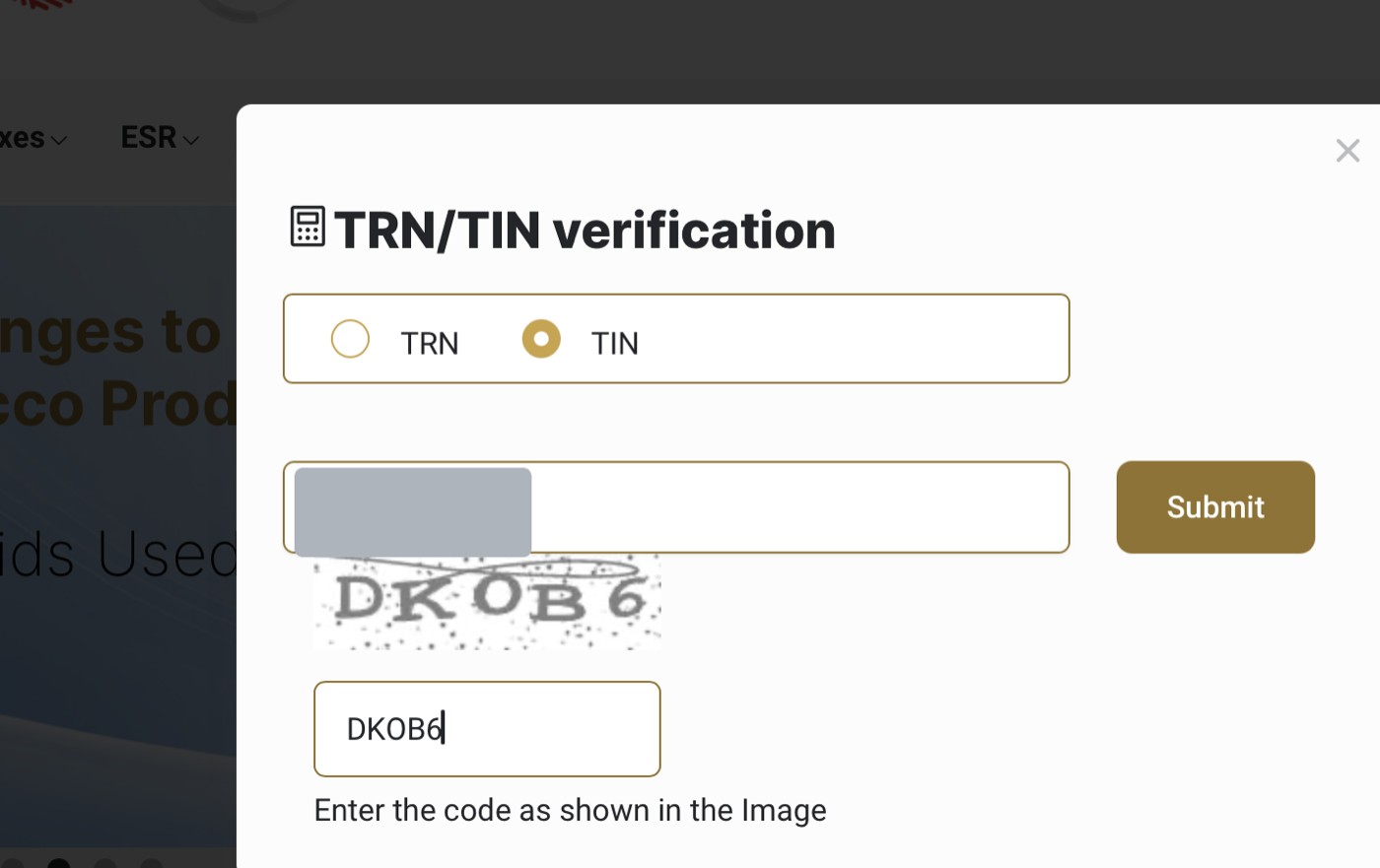
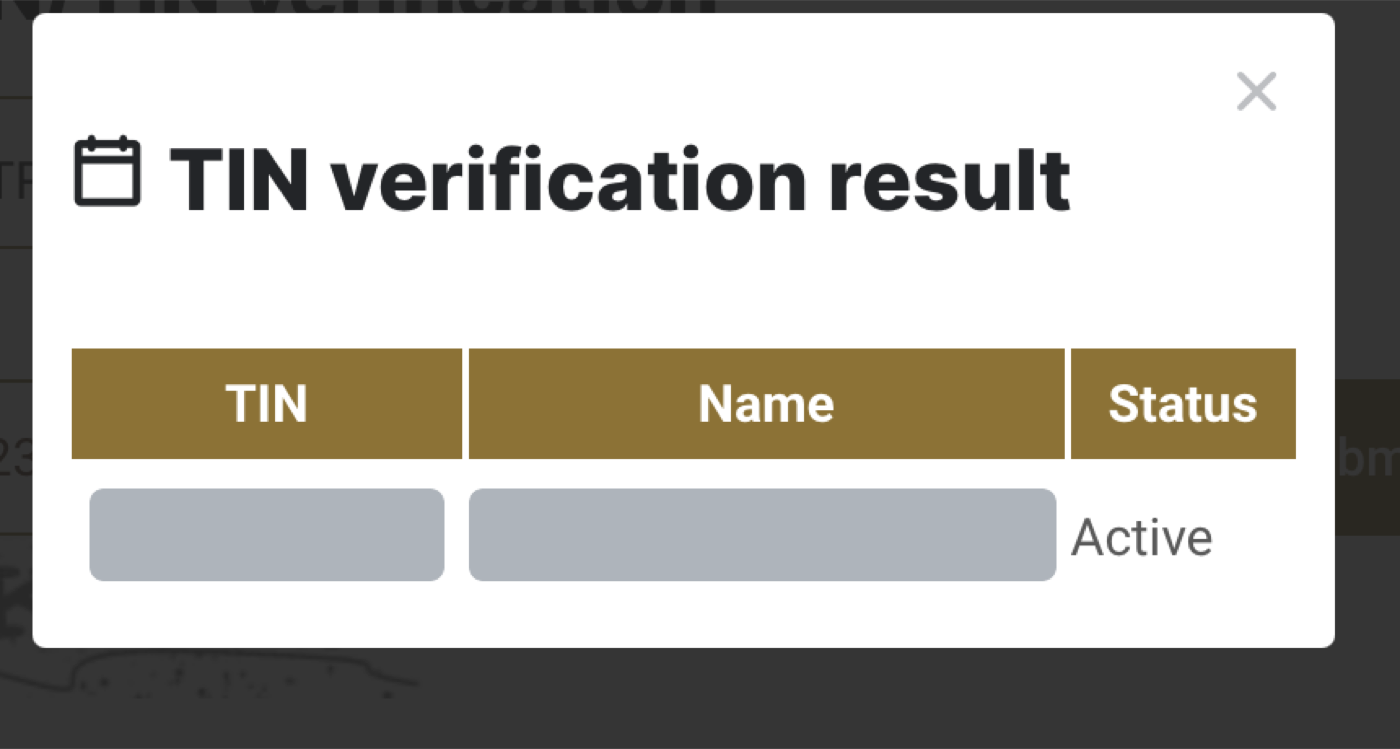
Open the FTA portal at https://tax.gov.ae/en/default.aspx and select TRN/TIN verification from the quick-links on the right of the home page (Figure 22). Choose TIN or TRN, type your number and the image (captcha) code, then click Submit (Figure 23). The result shows the number, the registered Name and the Status — a valid registration shows Active (Figure 24). If your details do not appear or the status is not active, contact the FTA before you begin onboarding.